
AI Applications in Practice: How RainbowSay Turns the Series, Videos and Podcasts on Your Mac into Sentence-by-Sentence Lessons
By David Nakamura · AI & Data News · AI Applications
Where a model touches your working day is the only part of an AI tool worth documenting. For RainbowSay the answer is unusually concrete: you press play on something you were already going to watch — a series episode, a vlog, a lecture recording, a podcast — and the software listens to the audio your Mac is outputting, detects the end of a sentence, stops the player, and returns that one sentence with translation, vocabulary and grammar attached. You never leave the video app and you never open a textbook. Live subtitles cover 13 languages, and “Hello” is available in all 57 languages you can listen and speak in. It is free to start with no credit card, and it taps audio only — never your screen.
The sections below follow the tool as a workflow: what the AI does at each step, which clicks you make, which jobs it genuinely improves, where it falls short, and what it costs.
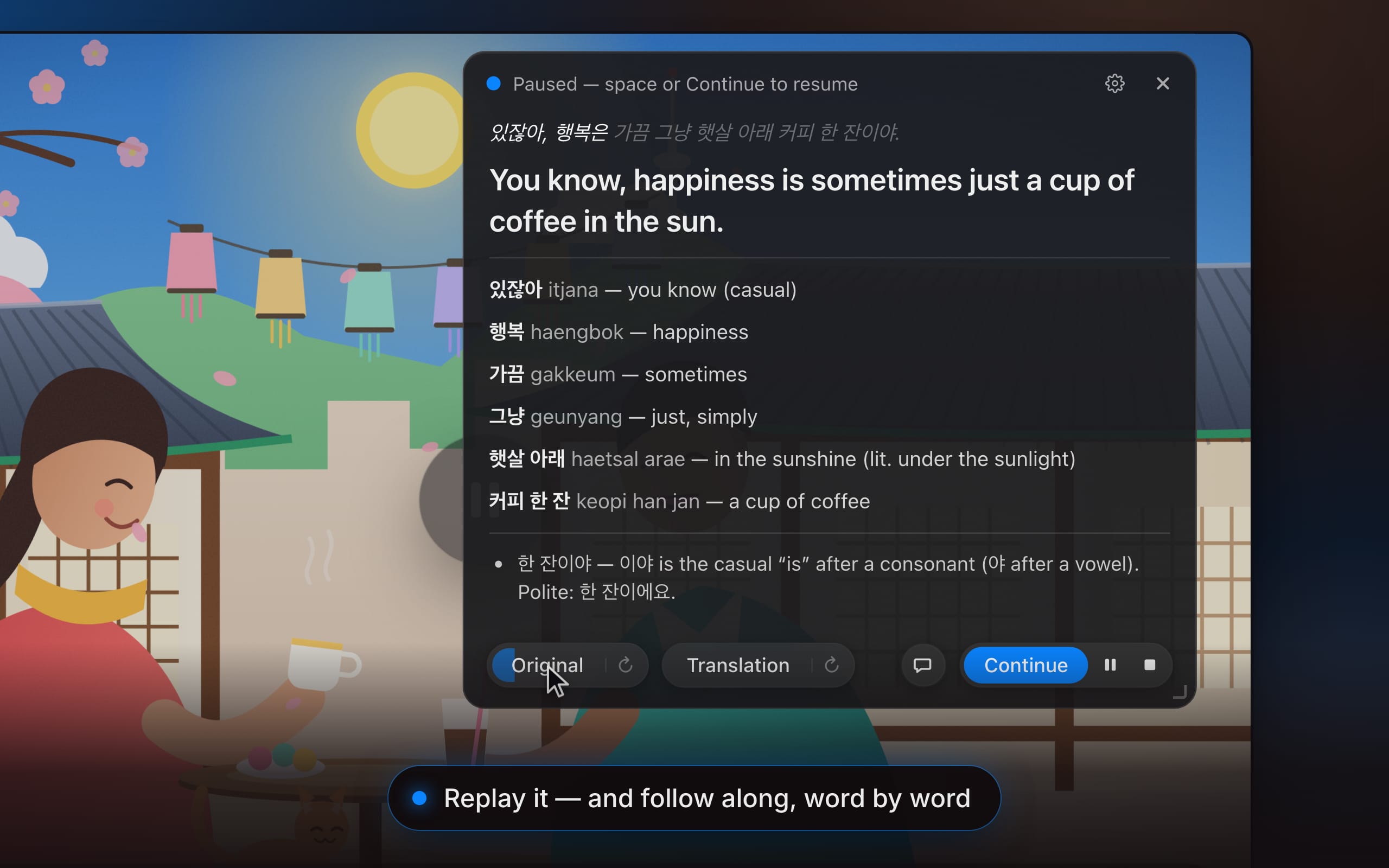
Capture of the actual interface: playback running, sentence boundary detected, player paused, sentence unpacked.
Where the AI sits in the loop
- Input — audio already playing on your machine (Listening), or your own voice from a microphone (Speaking, and Subtitles in mic mode).
- Trigger — a sentence boundary is detected and the player is paused; in live subtitle mode nothing pauses at all.
- Processing — a large language model researches every sentence automatically, while native speakers set the rhythm of the source material.
- Output — a single card holding the translation, the vocabulary with readings, and the grammar that holds the sentence together.
- Follow-up — replay the clip or the spoken translation with a word-by-word highlight, adjust pace from half speed upward, or open a chat about the line.
- Storage — sessions remain on your Mac and can be replayed or deleted at will.
- Cost gate — One allowance shared across Listening, Speaking and Subtitles.
Ears, mouth and eyes: three session types, three colors
Each sense gets its own kind of session inside the app — and its own color, both in the interface and on the product page. Pick by what you need in the moment: comprehension, production, or live display.
Listening: turn tonight’s episode into a sentence queue
Play a series, a vlog, a podcast or a lecture; the app hears the sentence end, pauses the player and hands you that line unpacked. Press Continue when you are done with it and the story goes on.
- It pauses for you. Playback stops at each sentence boundary, so you are never chasing the dialogue.
- Every sentence arrives unpacked: translation, vocabulary with readings, and the grammar note behind it.
- Hear it again — original or spoken translation, with word-by-word highlighting, and a voice pace you can set from half speed upward.
- Ask anything about the line in a chat: why this tense, what that idiom really means.
- Any app that plays sound on your Mac can be the source — all system audio, or just the one app you pick.
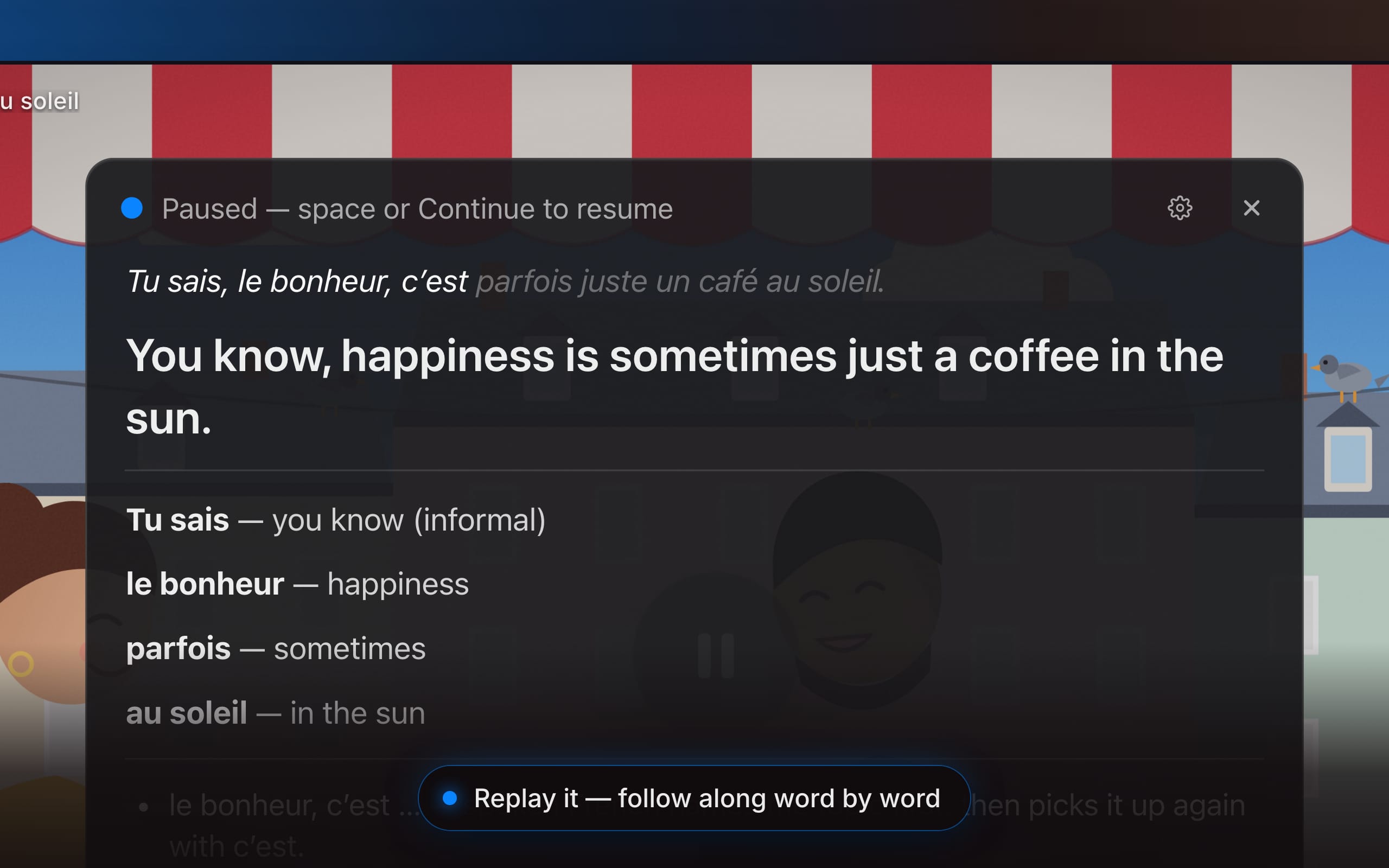
The real sentence card, replaying the original and the translation word by word.
Speaking: find out whether your sentence actually landed
Comprehension is half of a language; the other half is you, out loud. Say a line in the language you are learning and a patient coach reports back what it sounded like: the meaning as heard, every word you used, and the single thing worth changing.
- See that it came across. Your sentence is written out as it was heard, then translated back into your own language — read aloud and shown on the card, so you can check whether that is what you meant.
- One gentle correction. Not a wall of red ink: the most important fix only, with the corrected phrase attached. Nothing to fix? It names the pattern you used best.
- Every word you used, glossed one by one. Replay your own take beside the translation, then ask the chat about that preposition, that tense, or how a native speaker would put it.
- Push-to-talk or hands-free. Hold space or the mic button while you speak, or let the app detect where each sentence ends. Any microphone works, with noise reduction for a laptop mic or a headset.
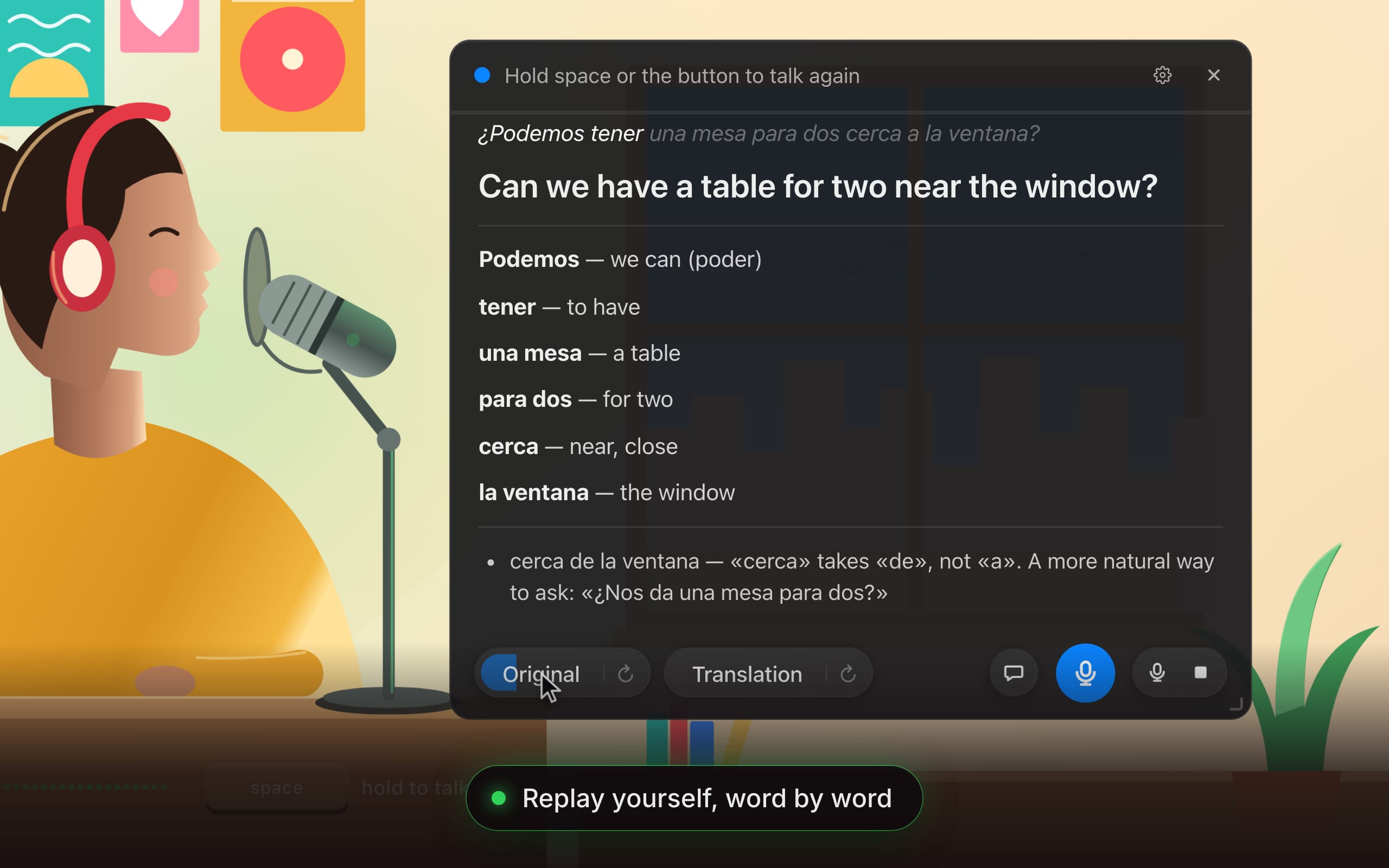
Speaking session shown as captured: transcript, back-translation and the one flagged fix.
Subtitles: read along live, in up to three languages
This mode paints translucent, always-on-top captions over any video or call — the original words and their translation streaming as they are spoken, with no pausing.
- Several languages at once: the original line plus up to three translations, side by side.
- The spoken language is detected for you, and live subtitles span 13 languages.
- A color per language: separate text and background color, size and width for each one.
- Put them anywhere: pop a language into its own window and drag it wherever the screen needs it.
- Study it later: sessions save as a timeline with audio, so any line can be replayed in any language.
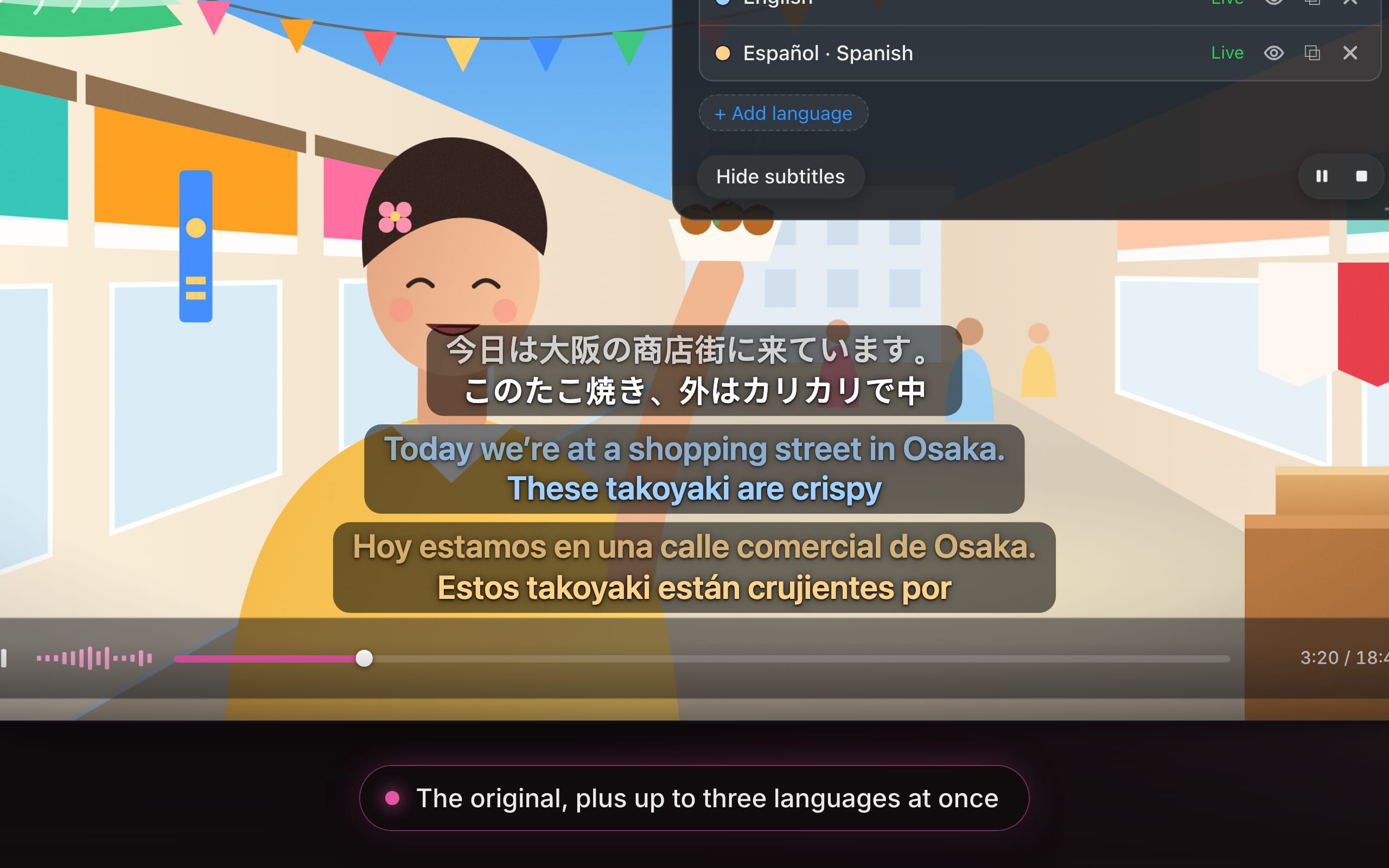
Always-on-top caption layer over a running video, source line plus translations.
Microphone source: translate live for an audience
Subtitles can listen to you instead of your Mac. Choose Microphone as the source, speak the way you always do, and everyone in the room — or on the stream — reads along in their own language.
- Teach in your own words. Explain, give instructions, tell the story: what you say appears on the projector as you say it, with its translation underneath.
- One room, several languages. Up to three translations at once, each in its own color — or its own window, on the screen that needs it.
- Any microphone: laptop, headset or lapel, chosen from the list, with noise reduction to match the room.
- Captions for what you create. Record your screen with the captions on it, or export the saved session as an SRT file, timed to your voice.
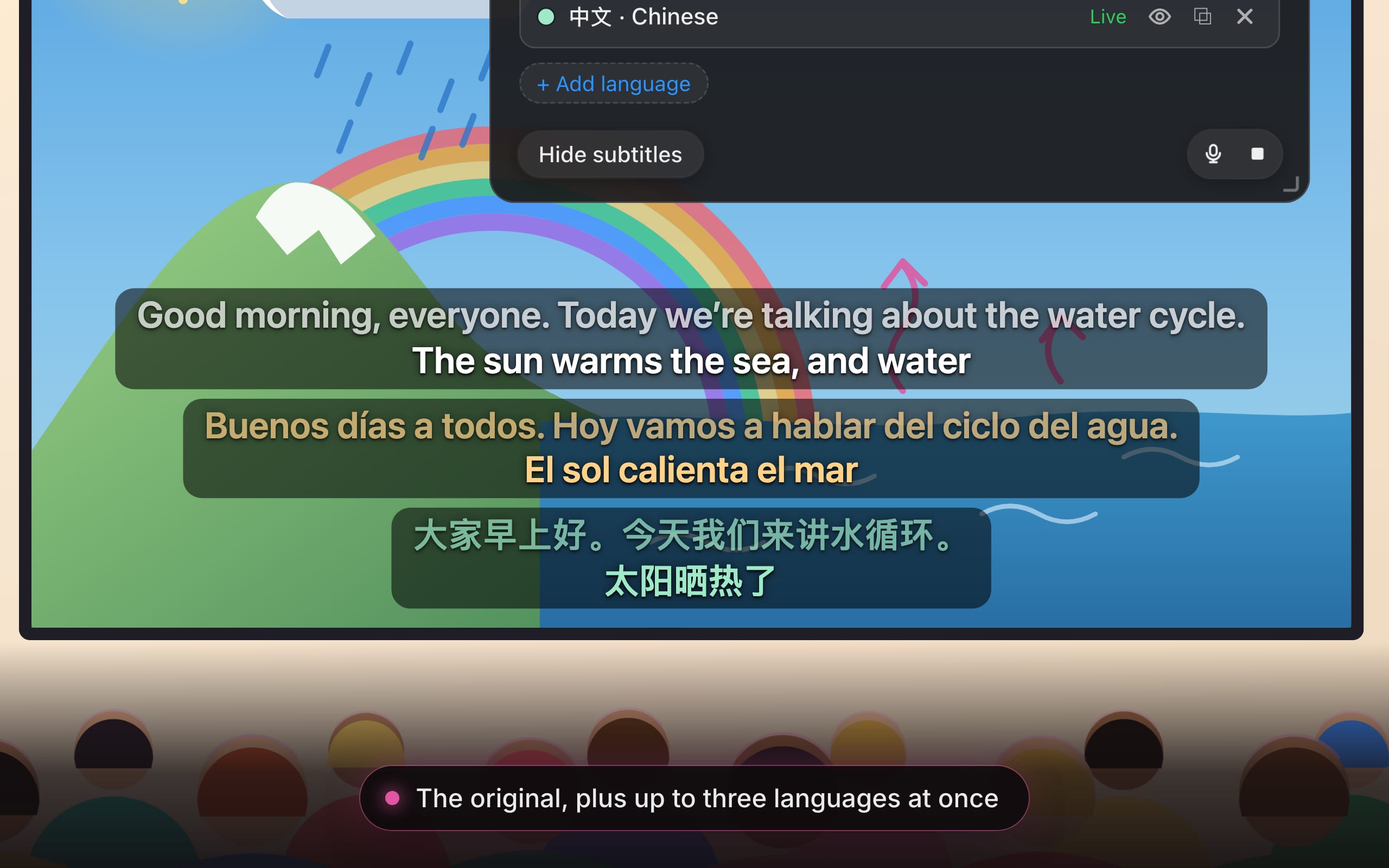
Microphone-source mode: live speech captioned for a room in multiple languages.
Three steps from install to your first session
- Install and sign in. Put RainbowSay on your Mac and sign in with Google. No API keys, no configuration — free starter credit is already waiting.
- Play anything, or speak. Start a series, a video, a podcast or a call, then pick Listening or Subtitles from the menu bar; for Speaking, choose it and use your microphone.
- Work one sentence at a time. The player stops at each sentence end: read it, hear it again, ask about it, press Continue. The story resumes, and so do you.
Which jobs benefit: students, teachers, creators
Students
- Tonight’s episode becomes homework you are willing to do.
- Watch what you would watch anyway; every line becomes a short lesson with vocabulary and grammar already looked up.
- Say it out loud before the oral exam, the trip, the first date — and take One gentle correction each time.
- A streak and a heatmap make the quiet hours visible.
Teachers
- Real language comes into the room.
- Teach from authentic material — news, interviews, films — and pause on exactly the sentence you want to discuss.
- Live subtitles in up to three languages at once, whether from what you play or from what you say into the microphone, for a classroom that does not share one tongue.
- Saved sessions double as lesson material: the sentences, the vocabulary, the audio.
Creators
- Language content without the editing marathon.
- Play your footage and each sentence arrives unpacked — translation, vocabulary with readings, a grammar note — giving you the word-by-word overlay viewers pause on, ready to screen-record.
- Live transcription and two-language captions over any video, or over your own voice from the microphone, in your colors, size and position.
- Every session is saved: copy the transcript straight into your script, or export subtitles as SRT, timed as spoken or aligned to the original.
Progress you can audit
Nothing you understood at 11 pm should be gone by morning. Every session is saved on your Mac, ready to replay, and the quiet evenings accumulate into something visible on an activity heatmap built with one cell per day and one column per week.
- Every sentence, with its audio: the original clip, translation, vocabulary, grammar and any chat you had about it, replayable with the same word-by-word highlight.
- Streaks and a year at a glance: an activity heatmap for each way of practicing, with current and longest streak, sessions, sentences and time.
- Subtitle timelines you can study: saved Subtitles sessions become a time-marked transcript — play any line in any language, copy the text, export SRT.
- Yours to keep or delete: history is stored on your Mac, not in a vendor cloud; remove a sentence, a chat or a whole session whenever you like.
Common misconceptions to clear before you commit
- “It needs a browser extension or a plugin.” — It listens to the audio your Mac plays, so any app that produces sound can feed it.
- “It captures my screen.” — It does not. macOS asks only for the permission named System Audio Recording Only; there is no screen recording in the app at all.
- “The model rewrites my whole sentence.” — Feedback is deliberately minimal: One gentle correction per attempt, or a callout of the pattern you used best.
- “Everything I watch is stored on the vendor’s servers.” — Sentences, audio clips, chats and subtitle timelines stay local; the servers see how much you used, not what you watched or said.
- “It is just another scripted-dialogue app.” — The source is real speech that mumbles, jokes and interrupts at its own pace, while the parsing of each sentence is handled automatically by a large language model.
Compatibility, privacy and the honest trade-off
- Platform: runs on Apple Silicon Macs with macOS 14.2 or later; there is no Windows or Linux path in the current version.
- Audio-only access: the system permission requested is System Audio Recording Only, so screen content is never read.
- Where the AI is involved: to transcribe and translate, the audio of a running session is sent to the app’s AI provider, OpenAI — the vendor states this plainly rather than burying it.
- Local history, deletable at any granularity: sentence, chat or entire session.
- Entry cost: free to start, no credit card, free starter credit included.
Plans: one allowance, three tiers
One allowance is shared by Listening, Speaking and Subtitles. Paying yearly adds two months at no cost.
| Free | $0 | Everything is testable with free starter credit; no card and no timer on deciding. |
| Pro | $29 /month | For a steady habit: a monthly allowance spendable on any feature you like. |
| Max | $100 /month | For daily immersion, classrooms and long evenings of live subtitles. |
Action checklist for your first two weeks
- Pick one audio habit you already have — an evening series, a commute podcast, a weekly call — and declare it your source instead of adding a new study block.
- Install, sign in with Google, and use the free starter credit before deciding on Pro.
- Run Listening first; let the player pause each sentence and resist skipping the unpacked card.
- Set the voice to half speed for the hardest passage, then back up to normal before you press Continue.
- After a week of comprehension work, add Speaking and read the back-translation to check whether your meaning arrived.
- Use Subtitles live in a meeting or class only after you have tuned color, size and window position for each language.
- Export one SRT or copy one transcript into a real deliverable to test whether the output fits your workflow.
- Open the heatmap at the end of week two; if the streak is not building, switch material rather than switching tools.
Applications like this succeed by attaching AI effort to attention you were already spending: press play on something you love, let the model handle the sentence boundary, and keep the record on your machine where you can audit it. Reach the desk at editorial@aidatanews.com with questions or corrections about this walkthrough.